Setting up a student email for your child
Intro
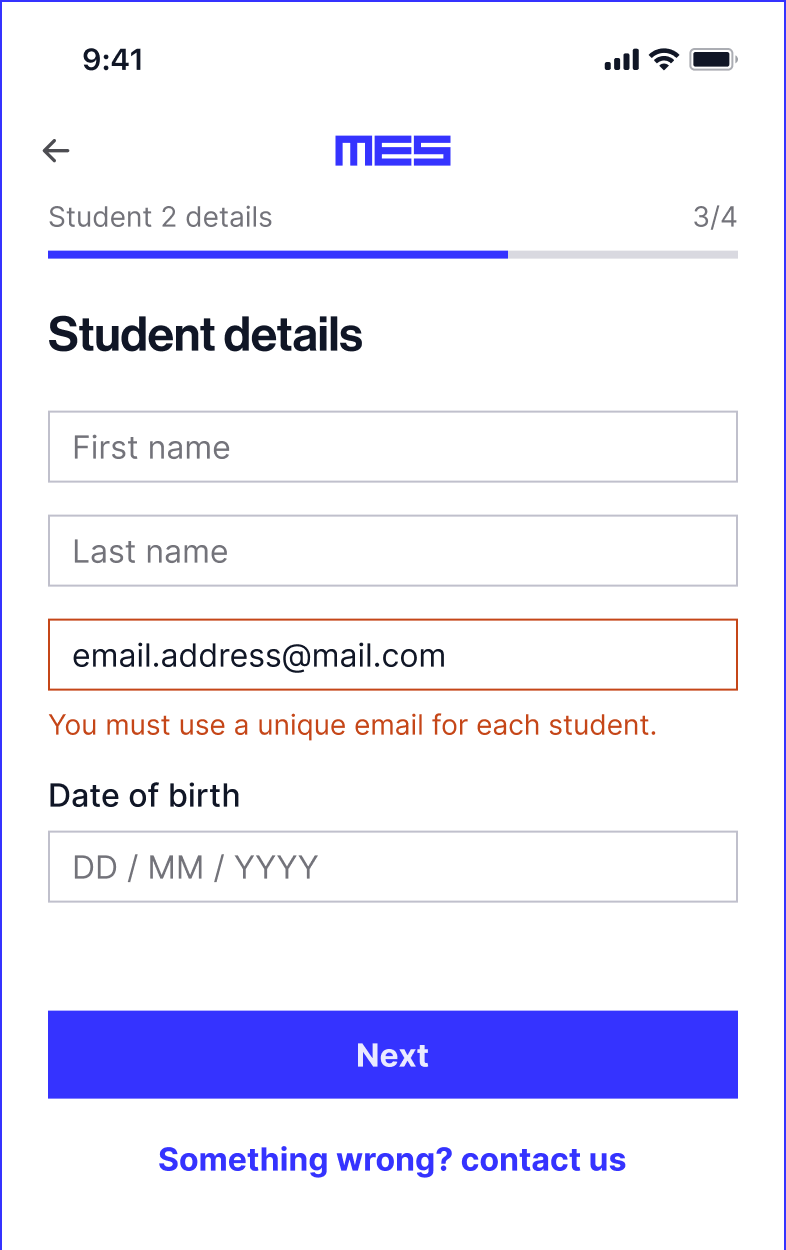
Online education companies often ask for the student to have their own email address, separate from a parent's. In the case of MyEdSpace, we use this to keep your billing and your child's learning login cleanly separated.
If your child already has their own email — a school address or a personal one — you can use that. You only need to read on if they don't have one yet.
One quick check: students buying for themselves don't need a separate email. Just choose "I'm a student buying for myself" when signing up.
Setting up a free email — Google (most common)
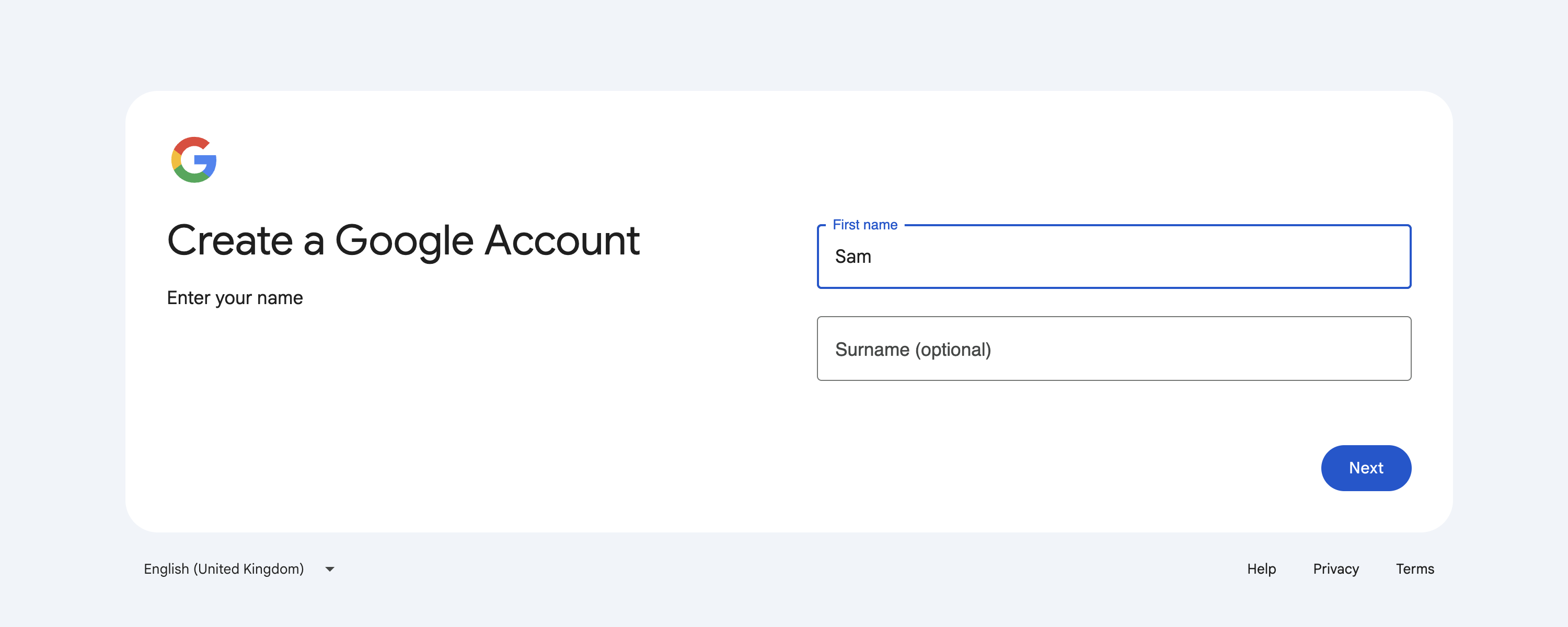
Use your child's real date of birth during sign-up — it's important for keeping the account legal and for child protection purposes. The starting point is the same whatever their age:
Go to the Google account sign-up page and follow the on-screen steps — your child's name, the email address they'd like, and their birthday. It takes about 15 minutes.
- If your child is 13 or over, that's all there is to it.
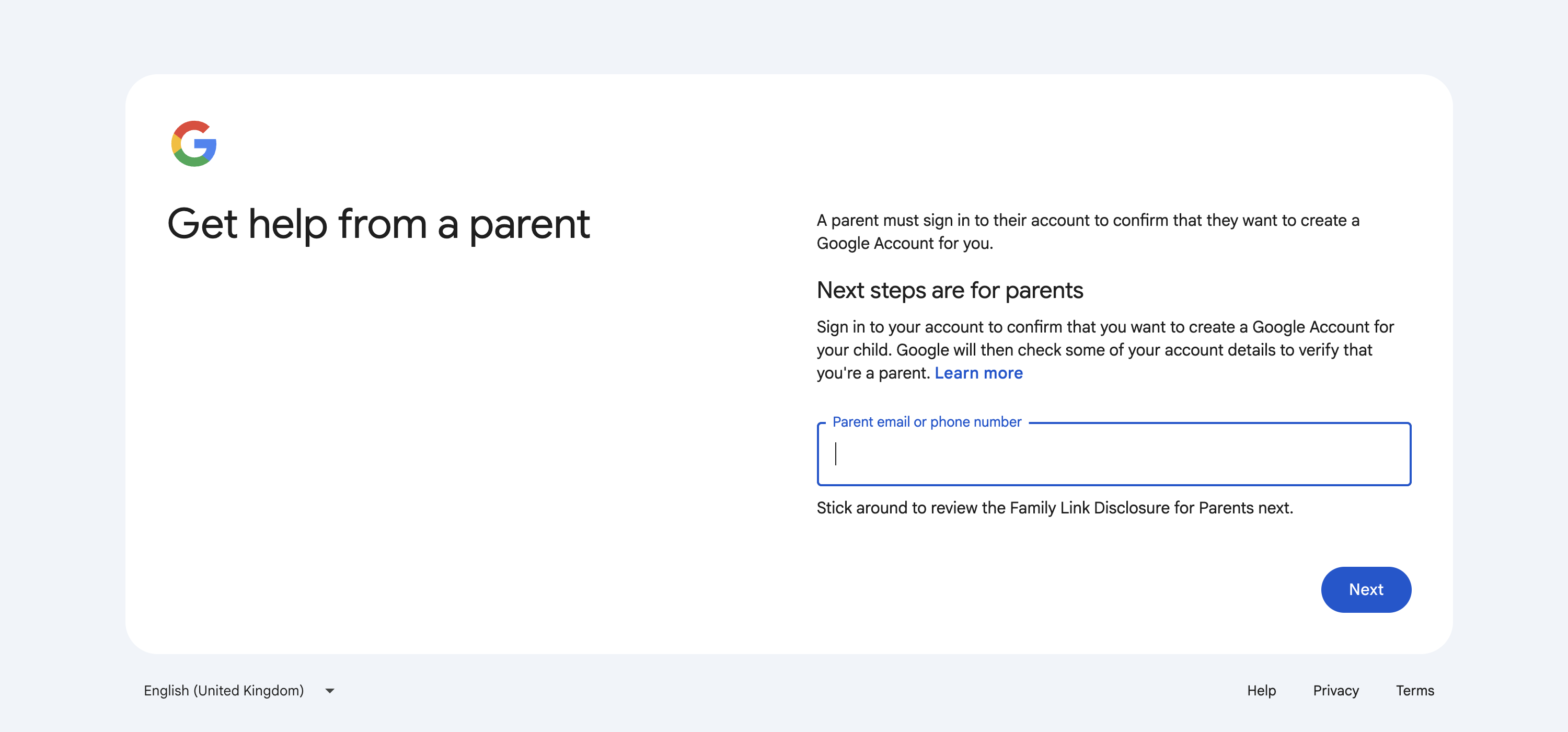
- If your child is under 13, the sign-up will pause to ask for your consent as a parent. You give this by signing in with your own Google account and following the prompts. The account is then created in the normal way, but the parent will be able to manage the child's account.
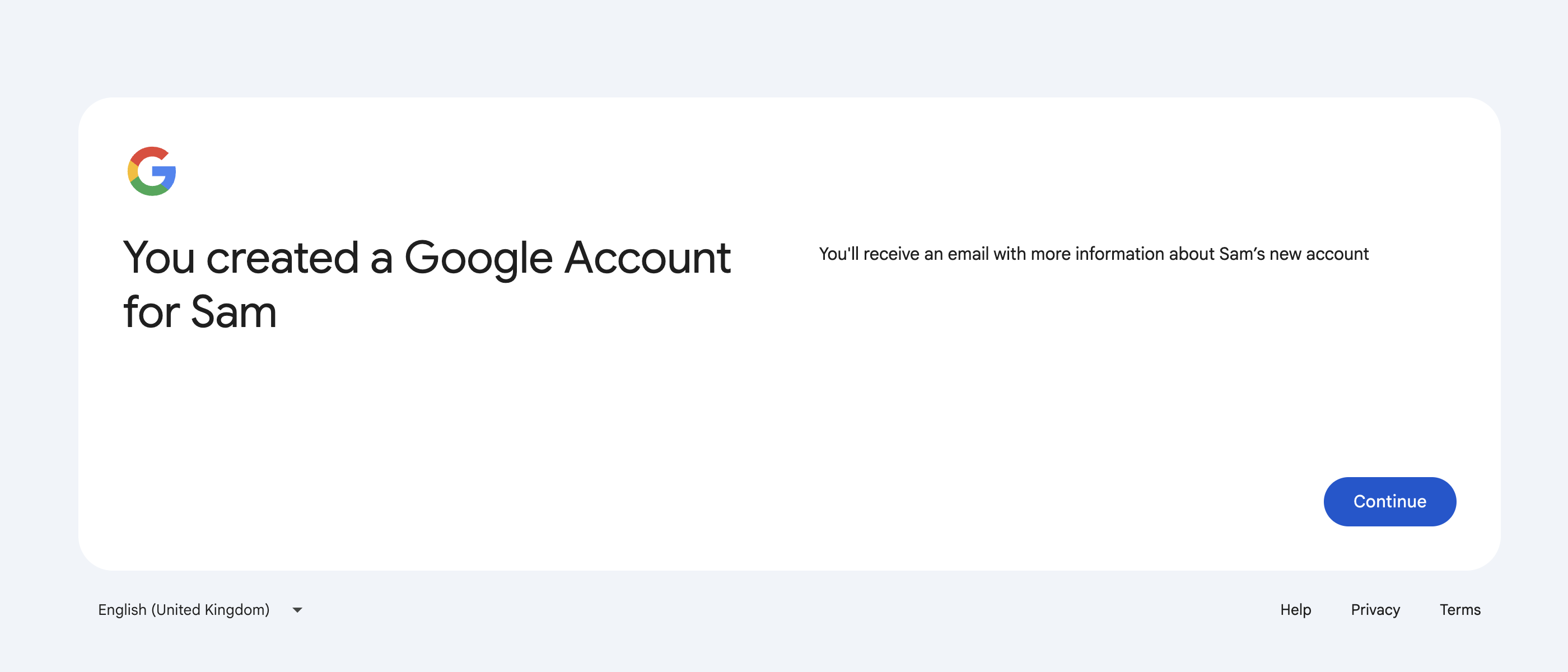
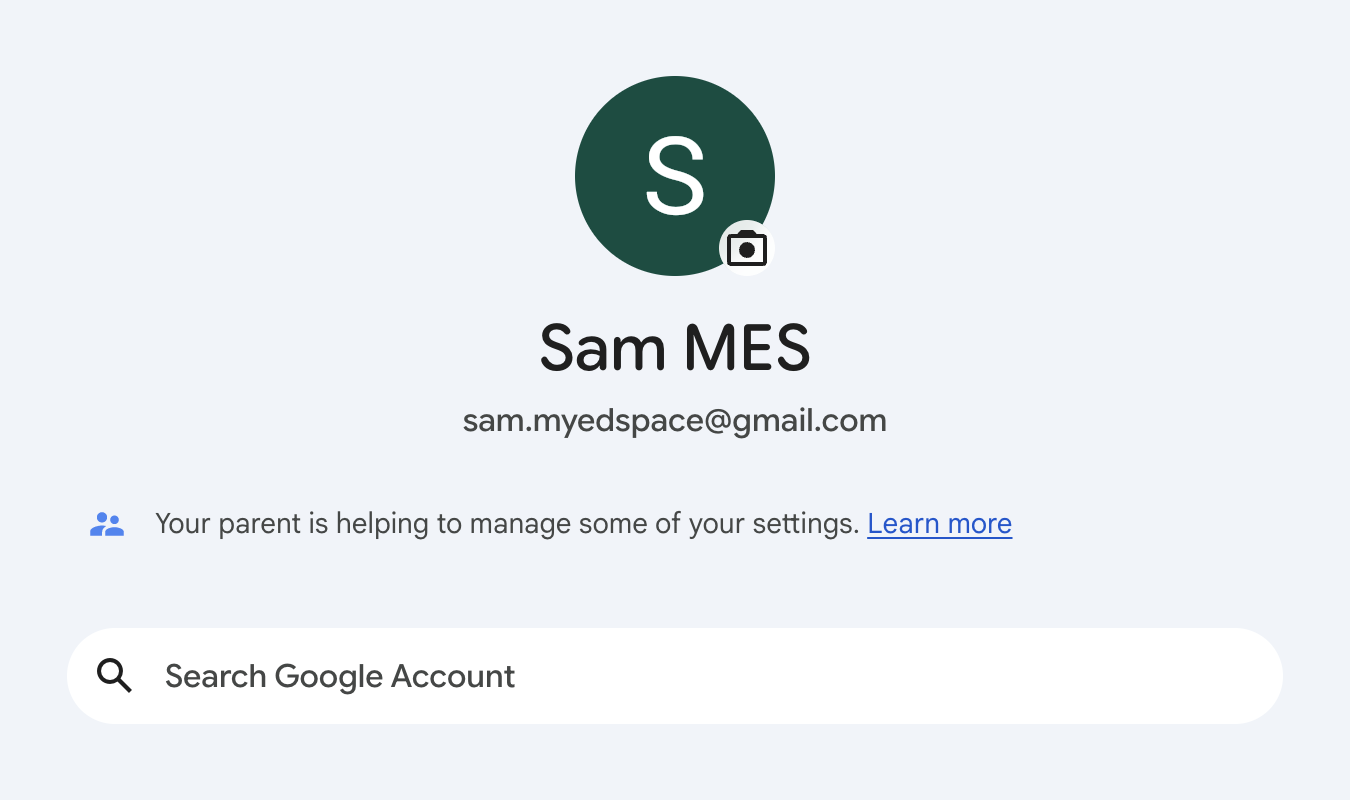
Optionally, once the account exists, you can add parental controls and supervision using Google Family Link, a free Google app. This is entirely up to you and isn't needed to use the email with MyEdSpace.
Prefer not to use Google?
Any email works — it doesn't have to be Gmail.
- Microsoft / Outlook: free, with a child-account option for under-13s.
- See Microsoft's general email setup guide,
- Or their family account setup guide.
- Any other provider you already use is fine, as long as it's an inbox you/your child can access.
Once it's set up
Return to the MyEdSpace account setup tab, enter your child's new email as the student email, and continue. That's it.